
These guys are awesome. Their wedding was in Henderson, at the Henderson Convention Center, which had a great little amphitheater where they held the ceremony, and tons of cool places for some nice shots. These guys were so laid back, I really enjoyed their attitude toward everything that went on. Here’s a slideshow:
Also, here are a few of my favorites from the day:
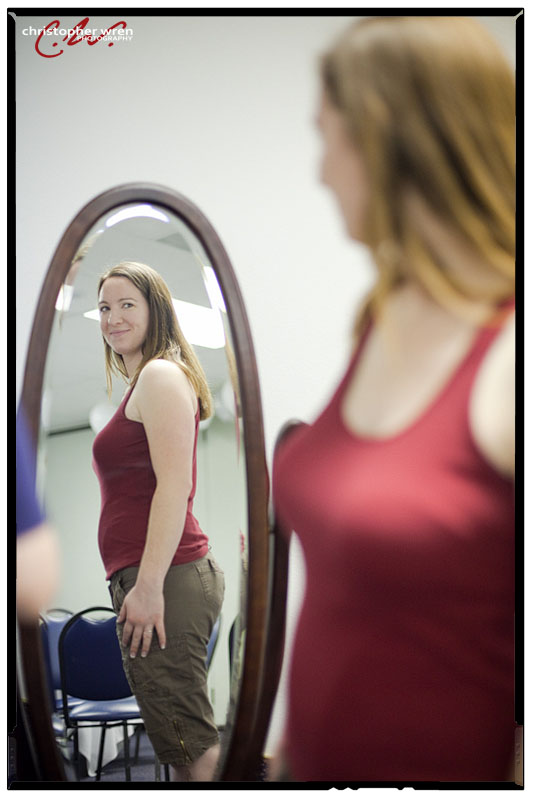
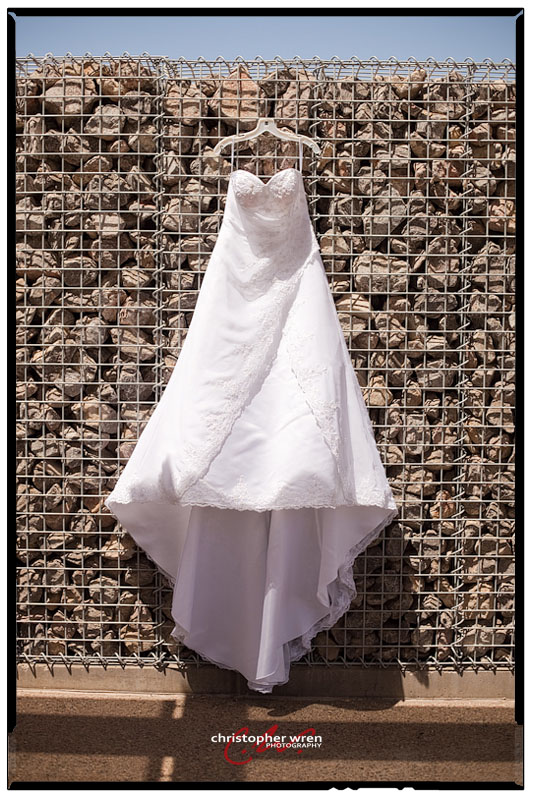

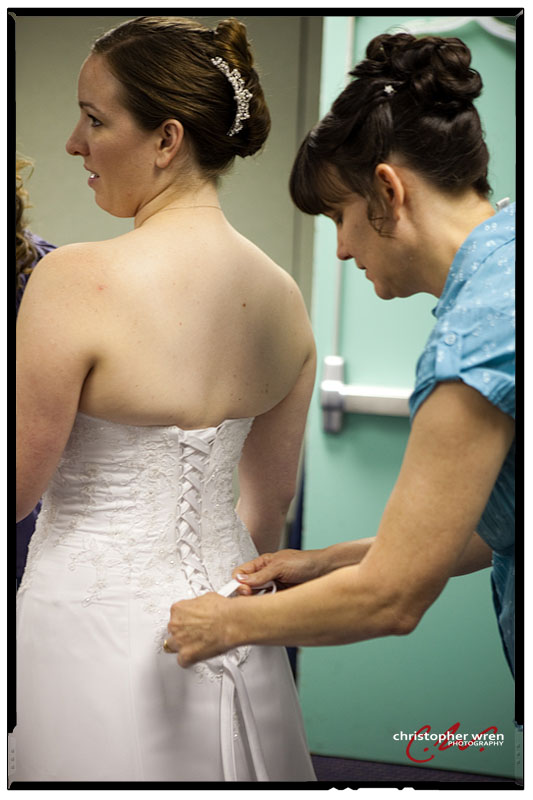
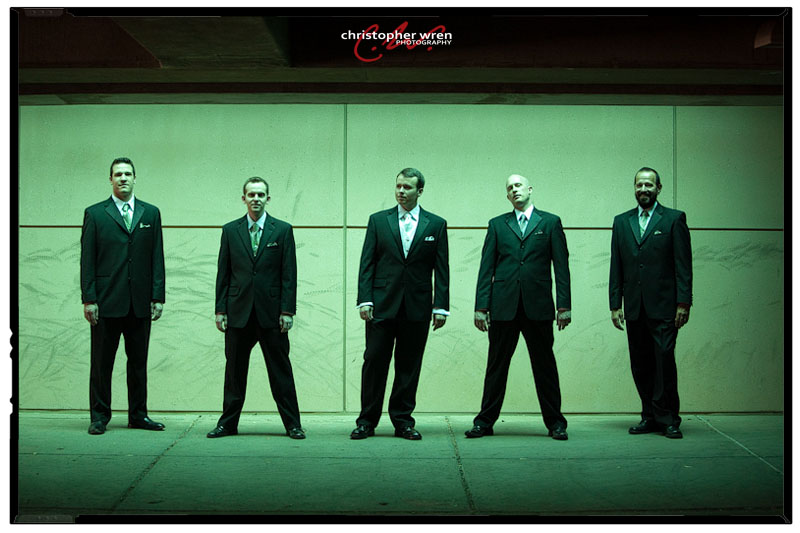
These guys had the “Reservoir Dogs” walk down.
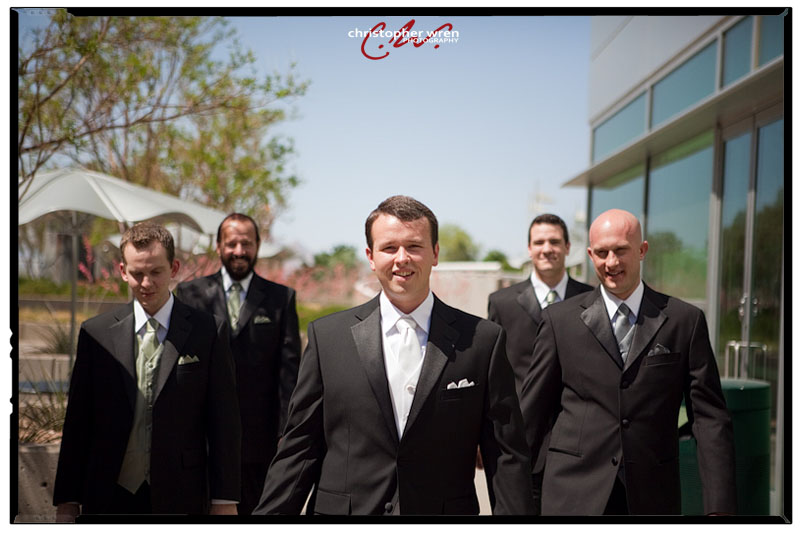 They remind me of agents in the Matrix in this parking structure.
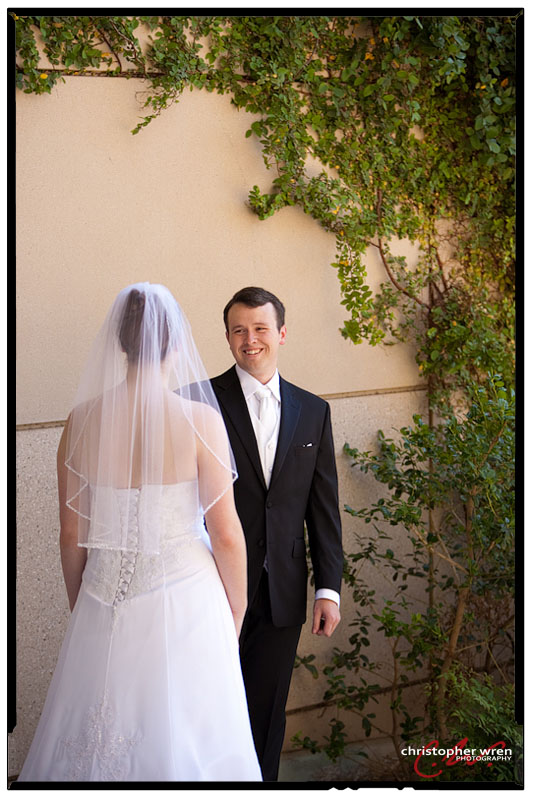
 Their first look! It was really special, and it allowed them to enjoy the moment in privacy.
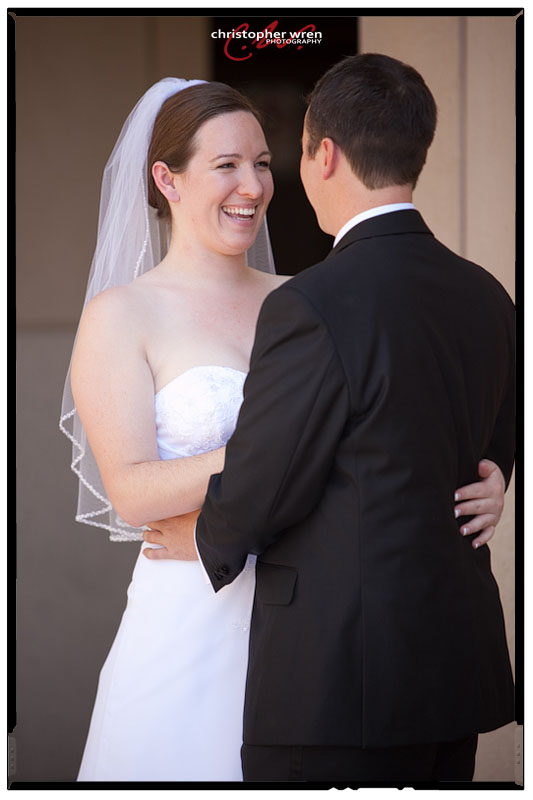
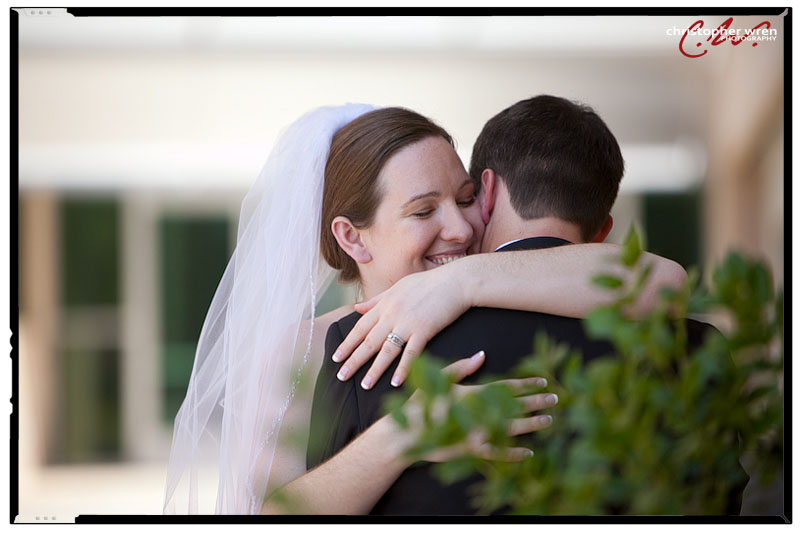
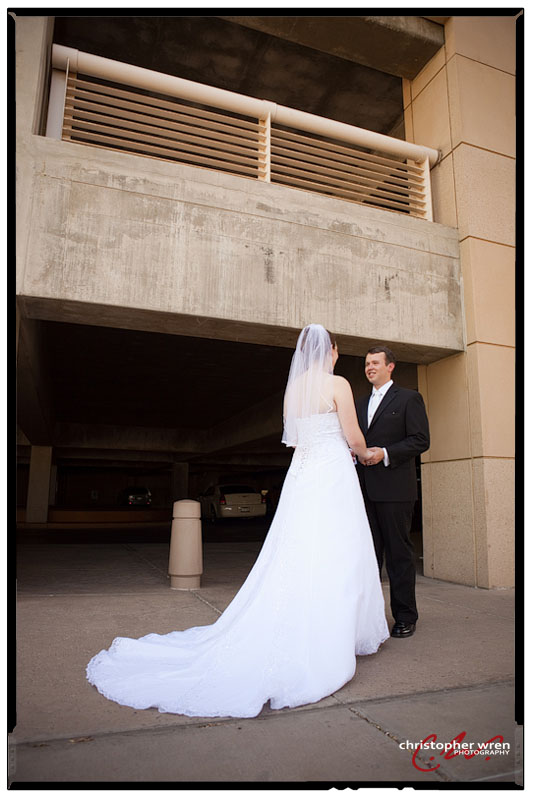
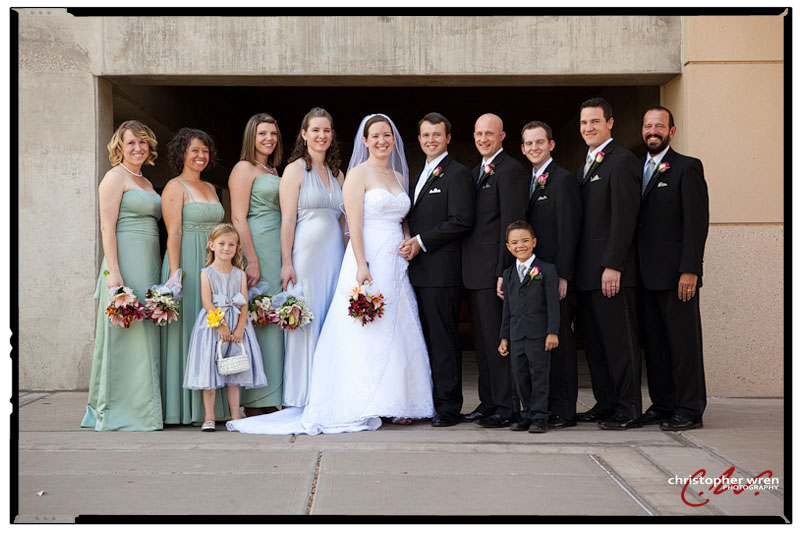
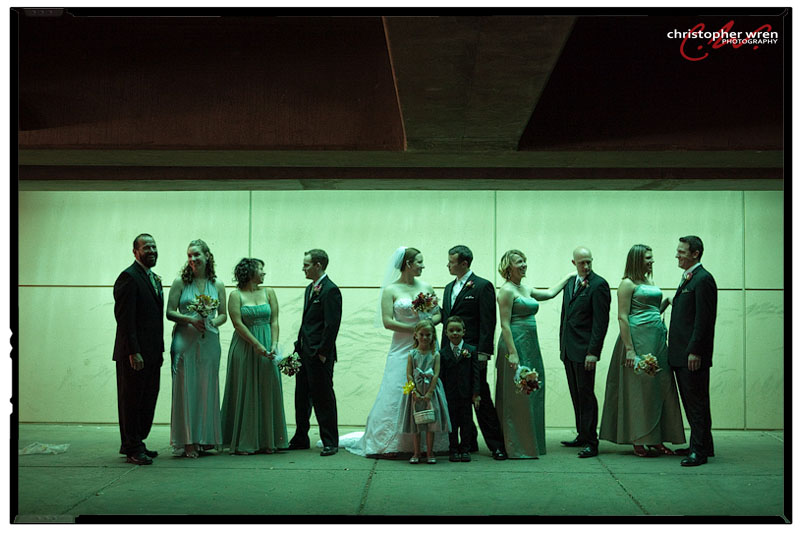
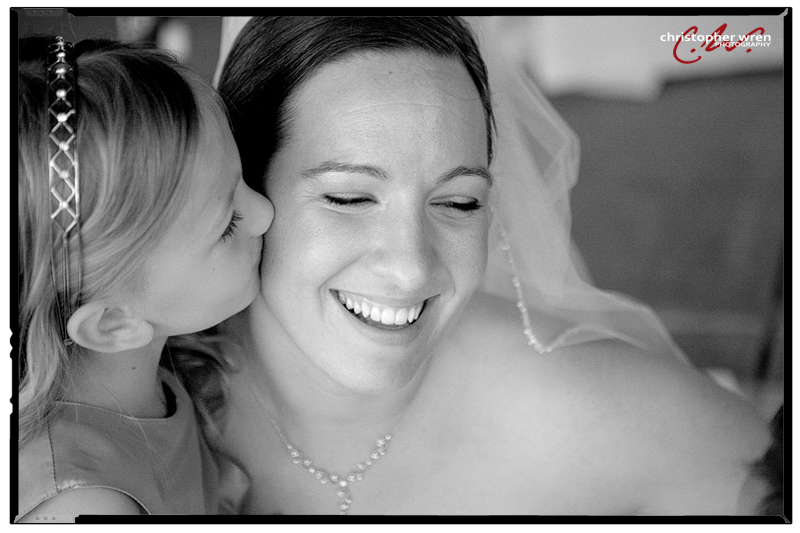
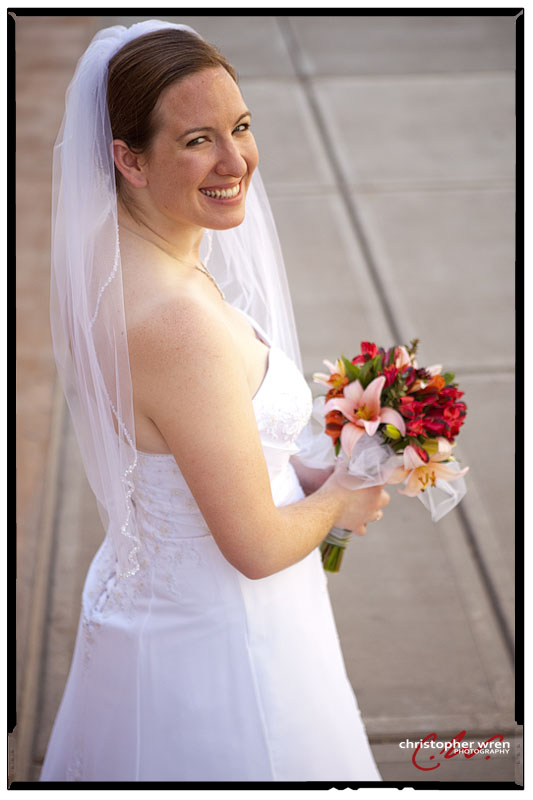 What a gorgeous bride.
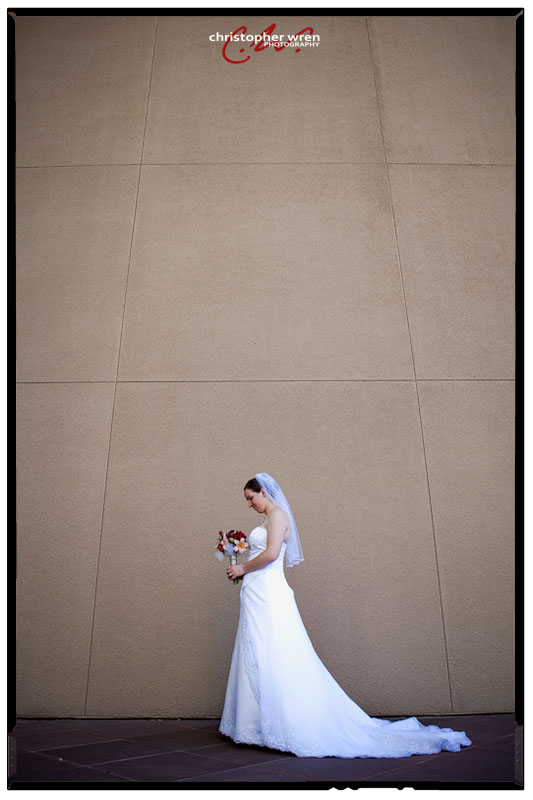
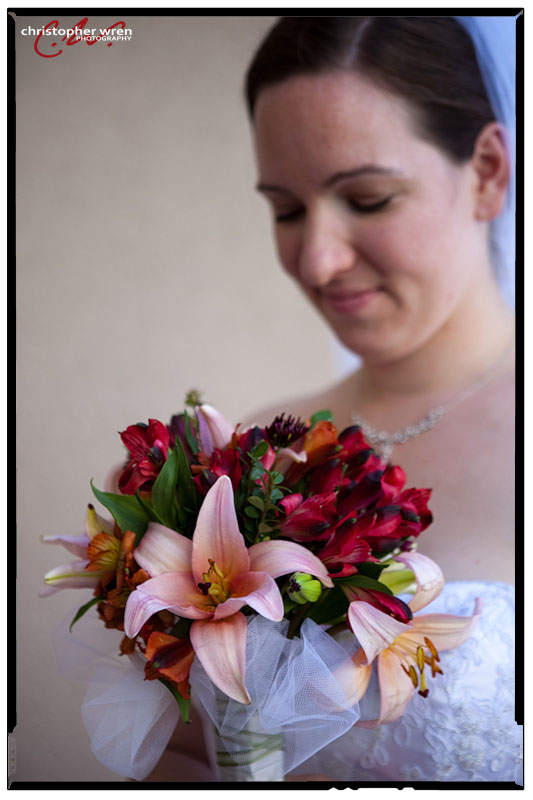

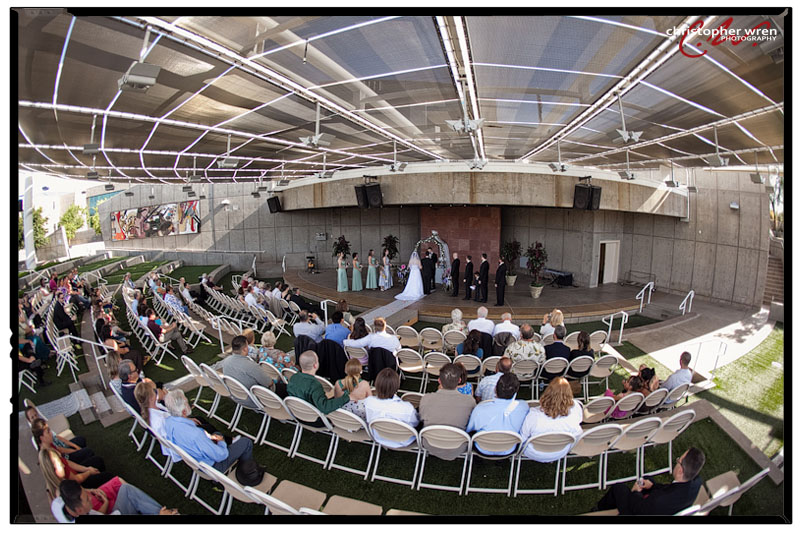 The best man pretended to lose the rings… NOT FUNNY. Well, a little ;).
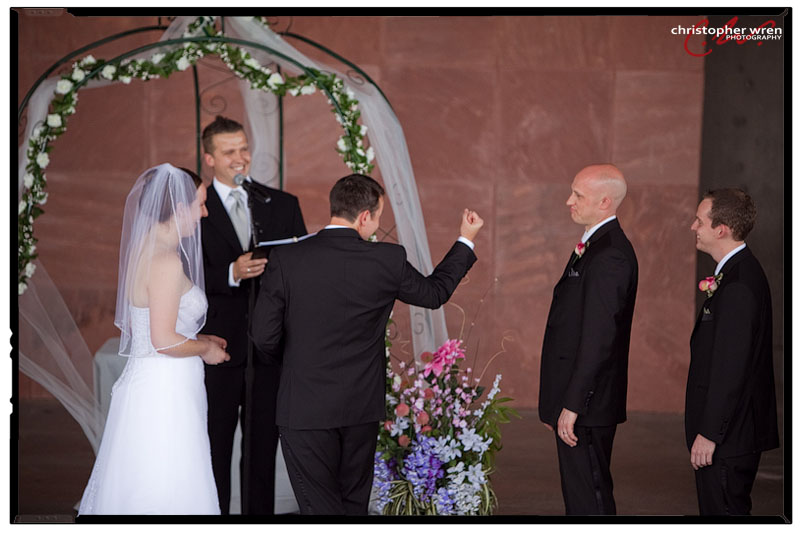
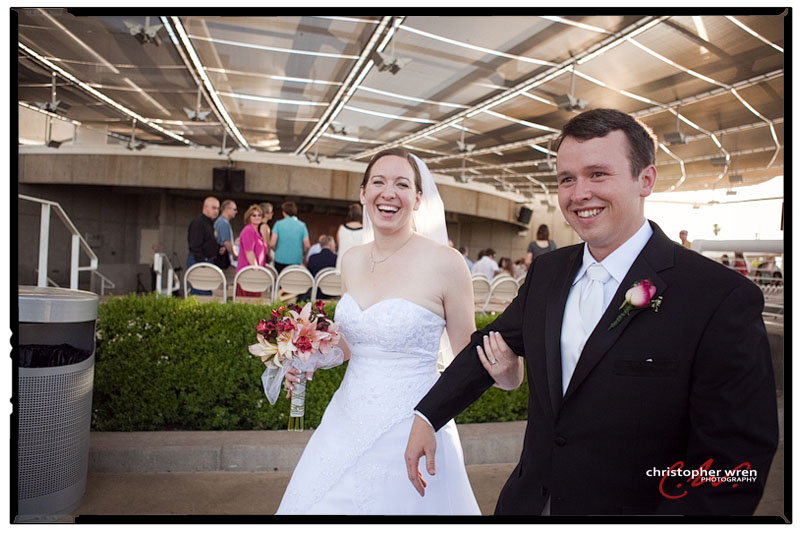
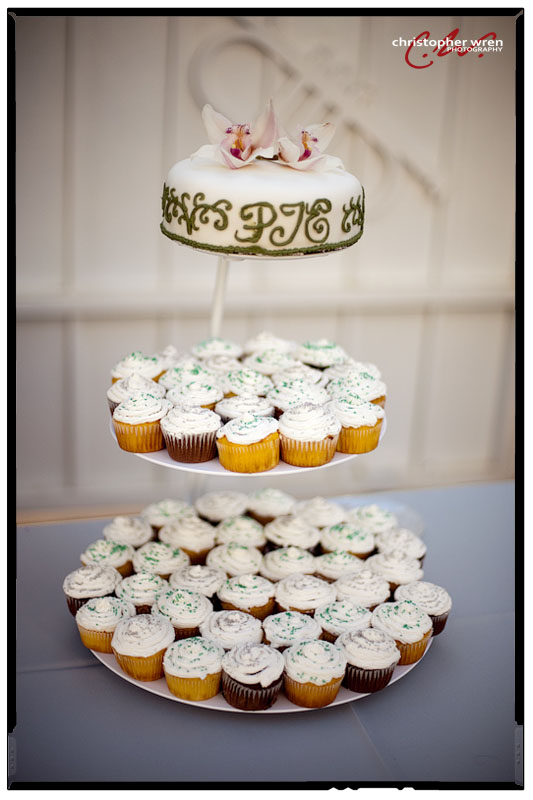
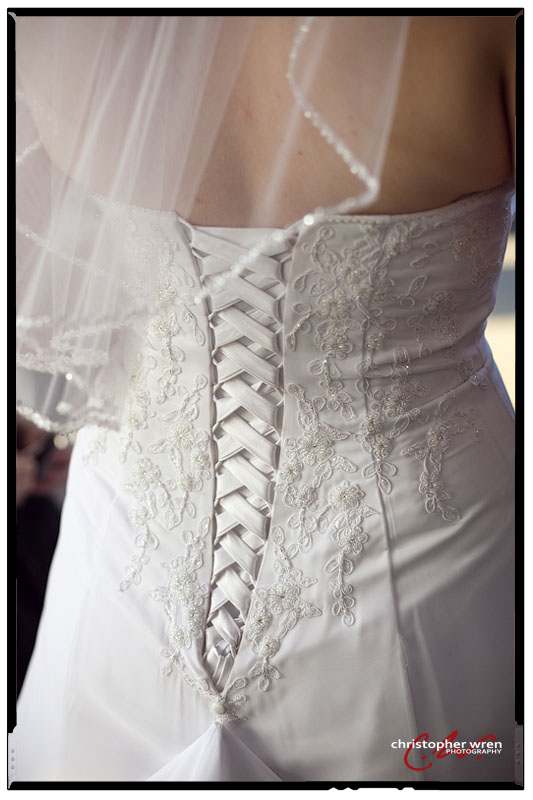
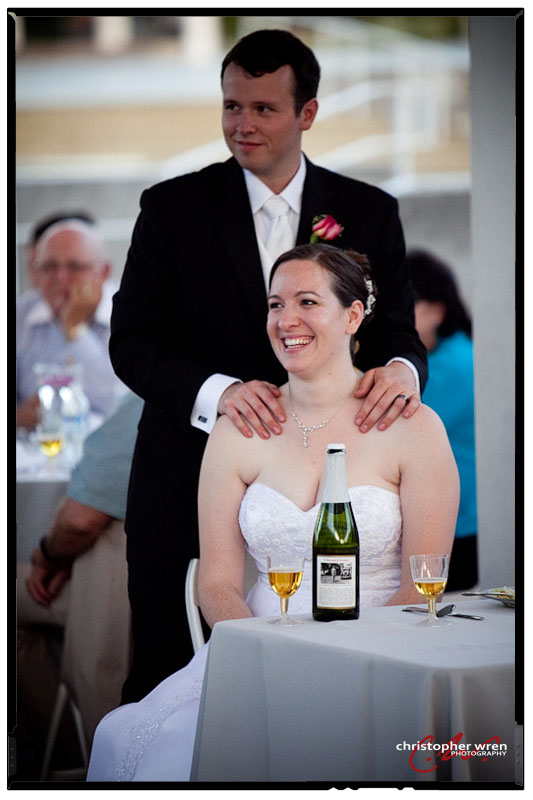
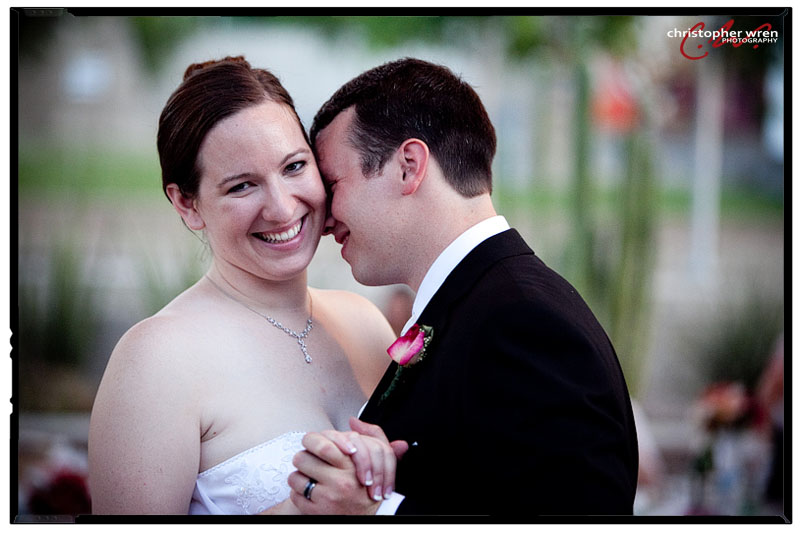
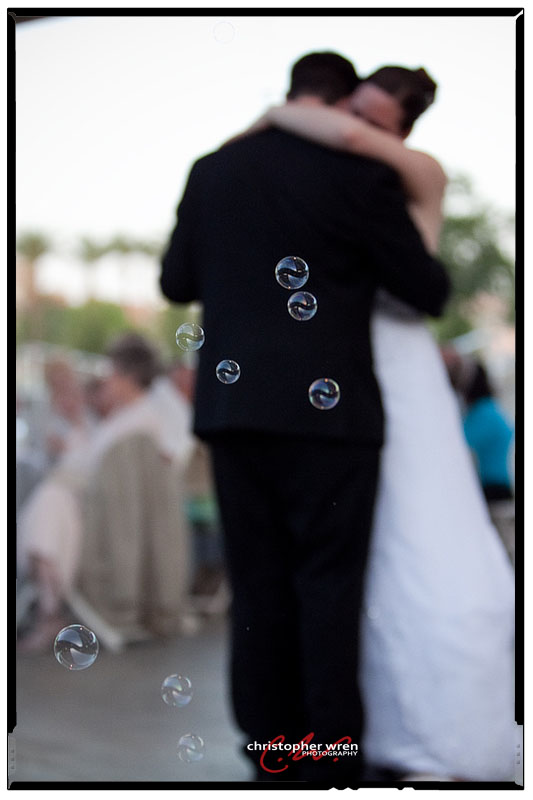
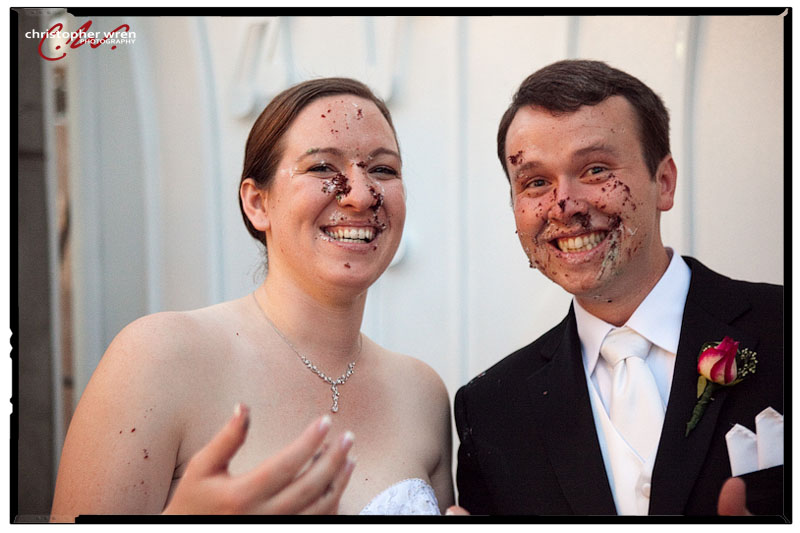
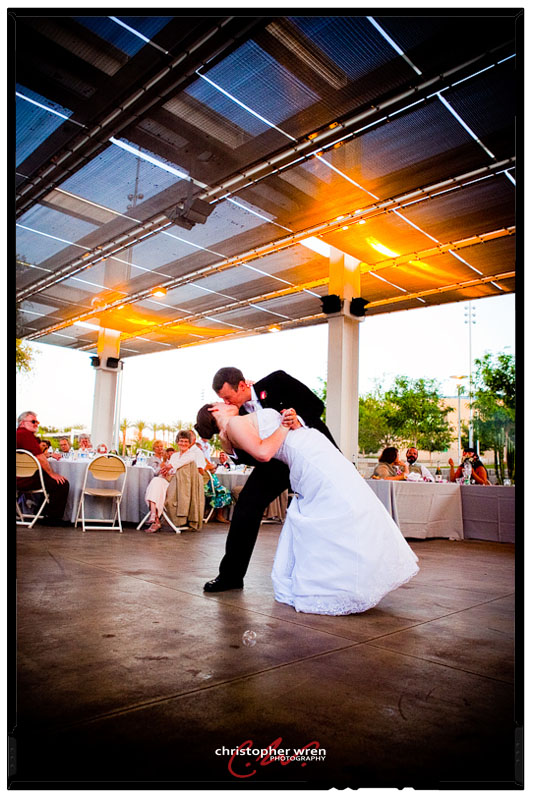 Their cake-feeding was an all-out food fight. I guess it’s the only chance to get away with it!
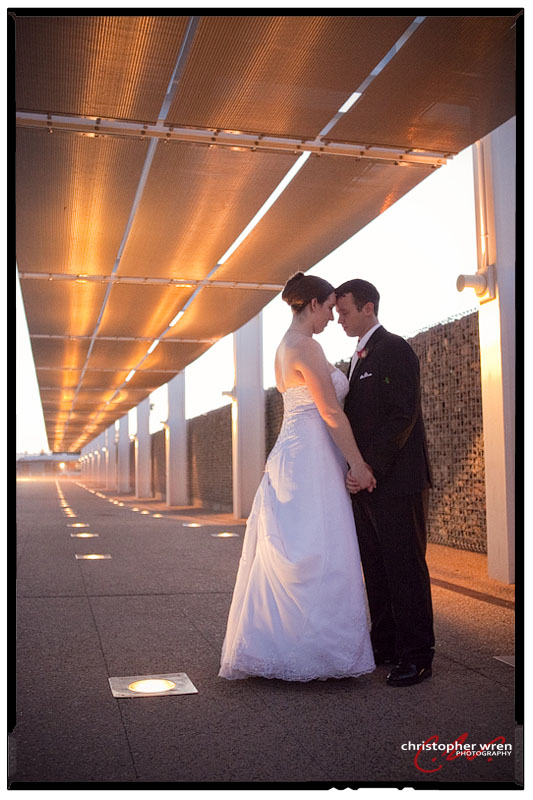 Overlooking the Las Vegas Lights…
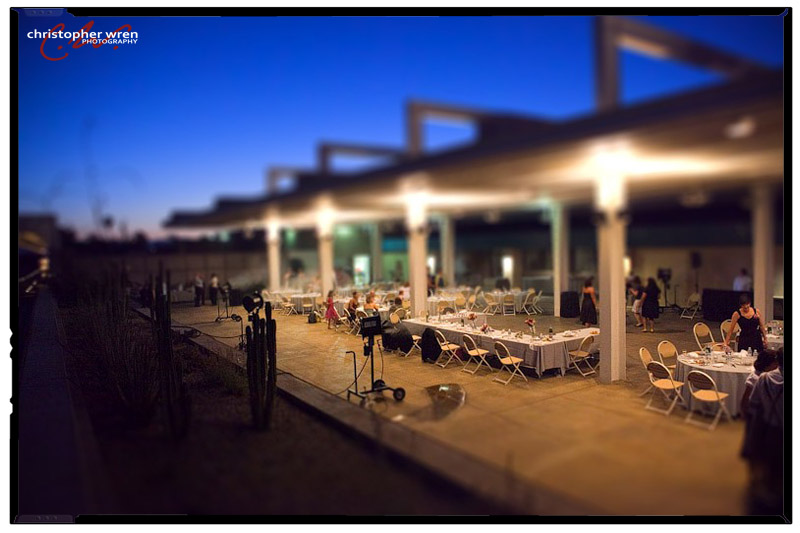
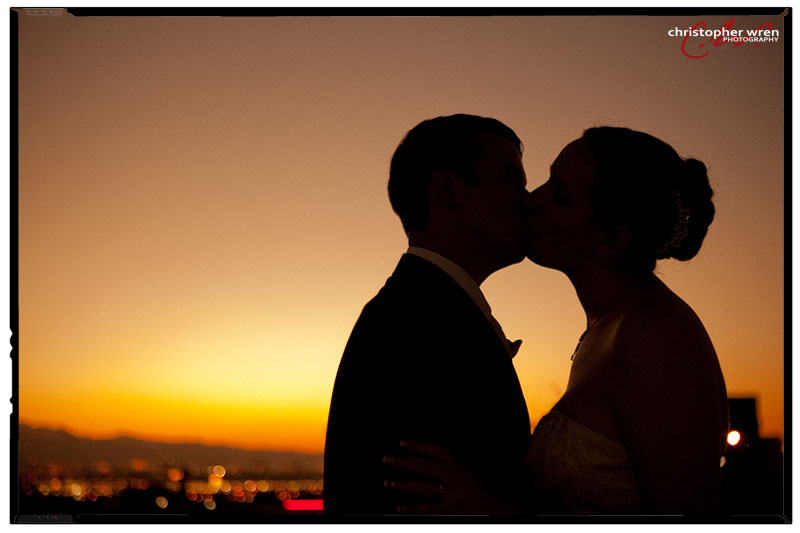 I used the “miniature” tilt-shift effect – a mini-reception!
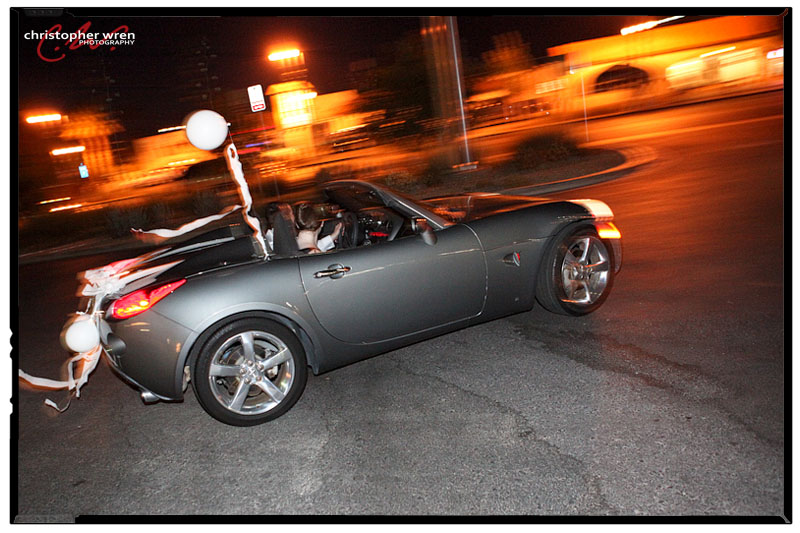
 The send off was awesome, and not a bad way to ride.
Thanks guys! I hope Costa Rica is wonderful.

pin-up rəsmi sayt Azərbaycan necə tapmaq https://pinup2009.help
Chao anh em, bac nao mu?n tim ch? n?p rut nhanh d? gi?i tri N? Hu d?ng b? qua trang nay nhe. N?p rut 1-1: Nha cai BJ88. V? b? thanh cong.
sitepilot.click – Overall, professional vibe here; trustworthy, polished, and pleasantly minimal throughout.
juego plinko pin up https://pinup2003.help
netvortex.click – Overall, professional vibe here; trustworthy, polished, and pleasantly minimal throughout.
pin-up jackpot Chile http://pinup2003.help/
pinup qeydiyyat http://pinup2009.help
дайсон официальный сайт дайсон официальный сайт .
leadnest.click – Mobile version looks perfect; no glitches, fast scrolling, crisp text.
juego aviator pinup juego aviator pinup
туры санкт петербург туры санкт петербург .
snipping tool alternative
Best Screenshot Tool for Windows 10 & 11
If screenshots are a regular part of your workflow, the built-in Windows Snipping Tool quickly starts to feel limiting. Extra steps, no cloud upload, no instant links, and slow interaction make it unsuitable for today’s workflows. A modern screenshot tool should be unobtrusive, fast, and designed around a single streamlined flow: capture, then upload and share.
This lightweight screenshot tool for Windows 10 and 11 is designed precisely for this purpose. Hit PrtScn, choose any screen area, release, and the screenshot is uploaded immediately. The shareable link is copied to the clipboard automatically. No save dialogs, no browsing folders, no manual uploading.
Area capture works precisely and predictably. A simple crosshair selector enables pixel-level accuracy, making it easy to capture UI elements, code fragments, charts, or partial screens — faster and more dependable than the default Snipping Tool.
Full-screen capture is equally straightforward. Use Shift + PrtScn to capture the entire desktop instantly. The output is a full-resolution image suitable for documentation, presentations, or bug reports, with no interruptions or popups slowing you down.
The main advantage is instant cloud uploading. All screenshots are uploaded automatically, and the sharing link available within milliseconds. The link can be pasted instantly into messengers, emails, or support systems without touching the file system or third-party image hosts.
The application runs quietly in the system tray and remains out of your workflow. Memory usage stays under 50MB RAM, launch time is virtually instant, and the installer size is just 2MB. When compared to heavier alternatives like Greenshot, Lightshot, or ShareX, the improvement in speed and responsiveness is instantly noticeable.
Privacy is treated properly. There are no ads, no analytics, no tracking, and no background data collection. Screenshots may contain sensitive information, and the application treats them with proper care — with nothing unnecessary running in the background.
Hotkeys are fully customizable. You can assign PrtScn, Ctrl+Shift+S, or any shortcut you want, and fine-tune image quality and behavior without heavy settings panels or cluttered menus.
Windows Snipping Tool functions, but it stops after capture. It offers no cloud workflow, no instant sharing, and no speed optimization. This tool replaces it by focusing on what actually matters: capturing information and sharing it immediately.
If you take screenshots every day — for development, support, remote work, or documentation — speed and simplicity are not optional. A modern screenshot tool should feel like a system feature, not an application.
пылесос дайсон беспроводной спб dn-pylesos-kupit-5.ru .
туры в санкт петербург с экскурсиями из москвы tury-v-piter.ru .
https://FreeAdsOnline.biz/588/posts/1/1/2012890.html
поездка питер поездка питер .
pin-up crash bonus pinup2009.help
походы выходного дня спб на текущий месяц tury-v-piter.ru .
туристический тур в санкт петербург туристический тур в санкт петербург .
reachriver.click – Mobile version looks perfect; no glitches, fast scrolling, crisp text.
сколько стоит поездка в питер на 5 дней на двоих сколько стоит поездка в питер на 5 дней на двоих .
турагентства по россии в спб tury-v-piter.ru .
туры из екатеринбурга в санкт петербург стоимость с перелетом tury-v-piter.ru .
reachriver.click – Found practical insights today; sharing this article with colleagues later.
купить дайсон в санкт петербурге купить дайсон в санкт петербурге .
pin-up ödəniş komissiyası https://pinup2009.help/
sitepilot.click – Loved the layout today; clean, simple, and genuinely user-friendly overall.
Chao c? nha, bac nao mu?n tim c?ng game khong b? ch?n d? gi?i tri Da Ga thi tham kh?o con hang nay. T?c d? ban th?: https://homemaker.org.in/#. Chuc cac bac r?c r?.
netvortex.click – Navigation felt smooth, found everything quickly without any confusing steps.
sitepilot.click – Content reads clearly, helpful examples made concepts easy to grasp.
leadnest.click – Mobile version looks perfect; no glitches, fast scrolling, crisp text.
netvortex.click – Pages loaded fast, images appeared sharp, and formatting stayed consistent.
leadnest.click – Mobile version looks perfect; no glitches, fast scrolling, crisp text.
netvortex.click – Found practical insights today; sharing this article with colleagues later.
leadnest.click – Overall, professional vibe here; trustworthy, polished, and pleasantly minimal throughout.
буклет коновалова, буклет коновалова купить, буклет доктора коновалова
буклет коновалова, буклет коновалова купить, буклет доктора коновалова
Существует несколько подходов, которые применяются в подобных ситуациях.
leadnest.click – Mobile version looks perfect; no glitches, fast scrolling, crisp text.
Chào cả nhà, bác nào muốn tìm sân chơi đẳng cấp để gỡ gạc Tài Xỉu thì xem thử con hàng này. Tốc độ bàn thờ: Tải app BJ88. Chiến thắng nhé.
dyson пылесос купить dn-pylesos-kupit-4.ru .
pin-up mines Chile https://www.pinup2003.help
очки сидоренко, очки вакуумные сидоренко, очки сидоренко купить, очки сидоренко отзывы
очки сидоренко, очки вакуумные сидоренко, очки сидоренко купить, очки сидоренко отзывы
Вопрос требует дополнительного изучения и сравнения.
reachriver.click – Appreciate the typography choices; comfortable spacing improved my reading experience.
буклет коновалова, буклет коновалова купить, буклет доктора коновалова
буклет коновалова, буклет коновалова купить, буклет доктора коновалова
Такой подход позволяет сравнить разные варианты.
pin-up rəsmi sayt giriş səhifəsi https://pinup2009.help
пылесос dyson спб pylesos-dn-8.ru .
пылесос дайсон спб dn-pylesos-4.ru .
sitepilot.click – Content reads clearly, helpful examples made concepts easy to grasp.
netvortex.click – Content reads clearly, helpful examples made concepts easy to grasp.
обзорная экскурсия по санкт петербургу на двухэтажном автобусе стоимость обзорная экскурсия по санкт петербургу на двухэтажном автобусе стоимость .
pin-up şifrə bərpası https://www.pinup2009.help